Process maps. Sketched on your Mac.
Map the steps, decisions and handoffs in your team's work. SimpleDiagrams 5 gives you sketch-style shapes, connectors that stay attached, and swimlanes that show who does what.
Try a purchase approval process map
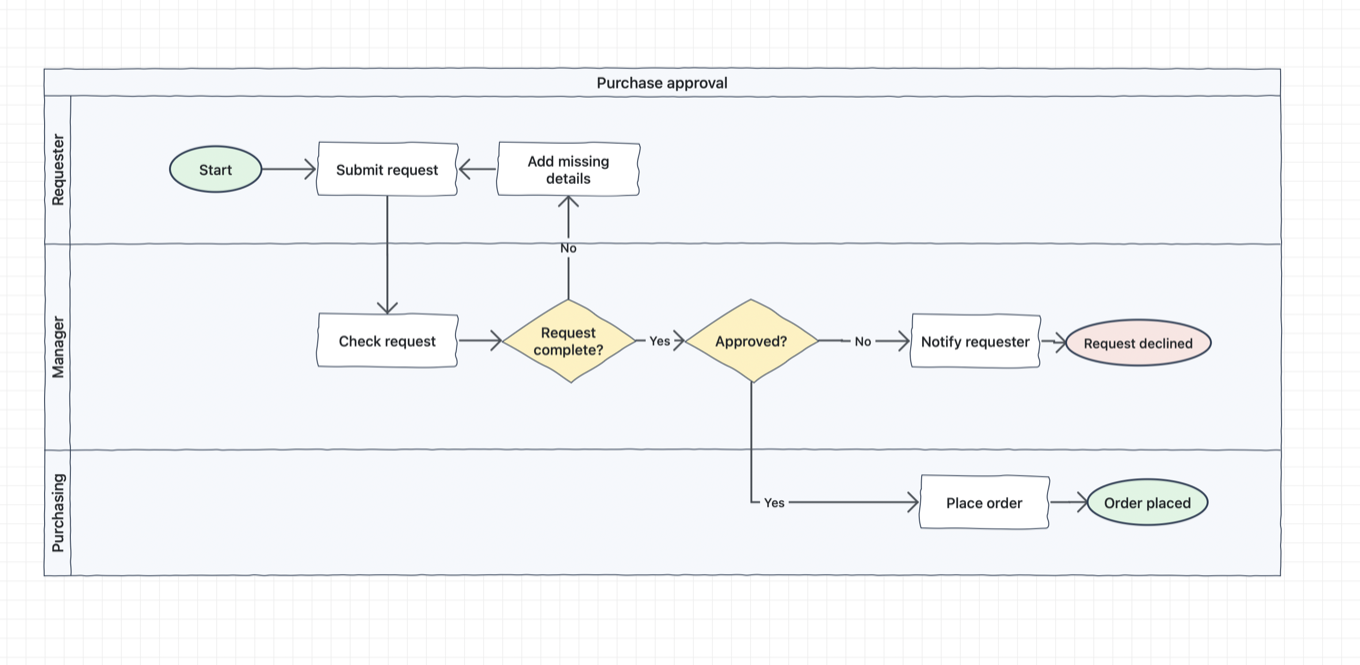
A requester submits a purchase request, a manager checks it, and purchasing places the order if it is approved. The lanes show who handles each step and where incomplete requests go back for details.
Unzip the download and open Purchase Approval.simplediagram in SimpleDiagrams 5.3 or later. Double-click a step to rename it, or drag it to see its connectors follow.
What goes on a process map
Four symbols cover most process maps. All four come with the app, in the Basic library or on the keyboard.
Start and end

An oval marks where the process starts and where it finishes. Press O for an ellipse, or use the Circle from the Basic library.
Steps

A box for each step, named with a verb, such as “Check the order”. Press R for a rectangle, or use the Square from the Basic library.
Decisions

A diamond holds a yes-or-no question, with one arrow out for each answer. Use the Diamond from the Basic library.
Arrows

Arrows show what happens next. Draw them with the Connector tool, and they stay attached when you move a box.
Draw one in SimpleDiagrams
- Place the steps. Drag a Square from the Basic library for each step, left to right or top to bottom. Double-click a shape to type its name.
- Add the decisions. Drag in a Diamond and write the question in it, such as “In stock?”.
- Join them up. Choose Right-Angle Connector from the Connector tool, then drag from one shape to the next. It finds its own route with square corners, and a new one when you move a shape. Double-click a connector to label it Yes or No.
- Line them up. Select a row of steps and choose Arrange ▸ Align, then Arrange ▸ Distribute to space them evenly.
- Add the details, if you want them. Right-click the Square in the Library panel, choose Edit Shape Data and add fields such as Owner and Time. Every step gets them. Page Data then shows the whole page as a table, ready to copy into a spreadsheet or export as CSV or JSON.
- Share it. Export a PNG, PDF or SVG, or print it. To paste it into a document or a slide, select it and press Command-Shift-C to copy it as an image.
Make handoffs clear
Give each team its own lane so everyone can see who takes over next and where work gets sent back.
Try it with the purchase approval map. Move the manager’s review step and watch the arrows stay attached. Then swap in your own teams and steps.
Try the editable exampleDownload SimpleDiagrams 5 and try it free for 7 days
The free trial is in the download from this site. The Mac App Store edition is paid up front and has no trial.

Mapping inventory, shipments and cycle times? Browse the free Value Stream library.
See how to work with swimlanes
The user guide has more on connectors and shape data.
Does your team use BPMN notation? See BPMN diagrams on your Mac.
Just need a quick flowchart? See how to make flowcharts on your Mac.
Drawing process maps in Visio or OmniGraffle now? See why SimpleDiagrams is a Visio for Mac alternative and an OmniGraffle alternative.